How this article was prepared
VPNScout reviews official documentation and public security guidance, then checks material claims during editorial updates. We do not describe a product as hands-on tested unless the article includes the test conditions and results.
If your VPN is not working on hotel Wi-Fi, the hotel probably has not authorized your device through its captive portal yet. Temporarily pause the VPN and any setting that blocks internet access without it, join the hotel's verified network, complete the official sign-in page, confirm that a normal website loads, and then reconnect the VPN. If the portal is complete but the VPN still will not connect, try another server or a protocol designed for restrictive networks.
Do not use the connection for email, banking, work accounts, or other sensitive activity while the VPN and its kill switch are temporarily off. Complete only the hotel's legitimate access process, reconnect protection promptly, and follow the hotel's network terms and local law.
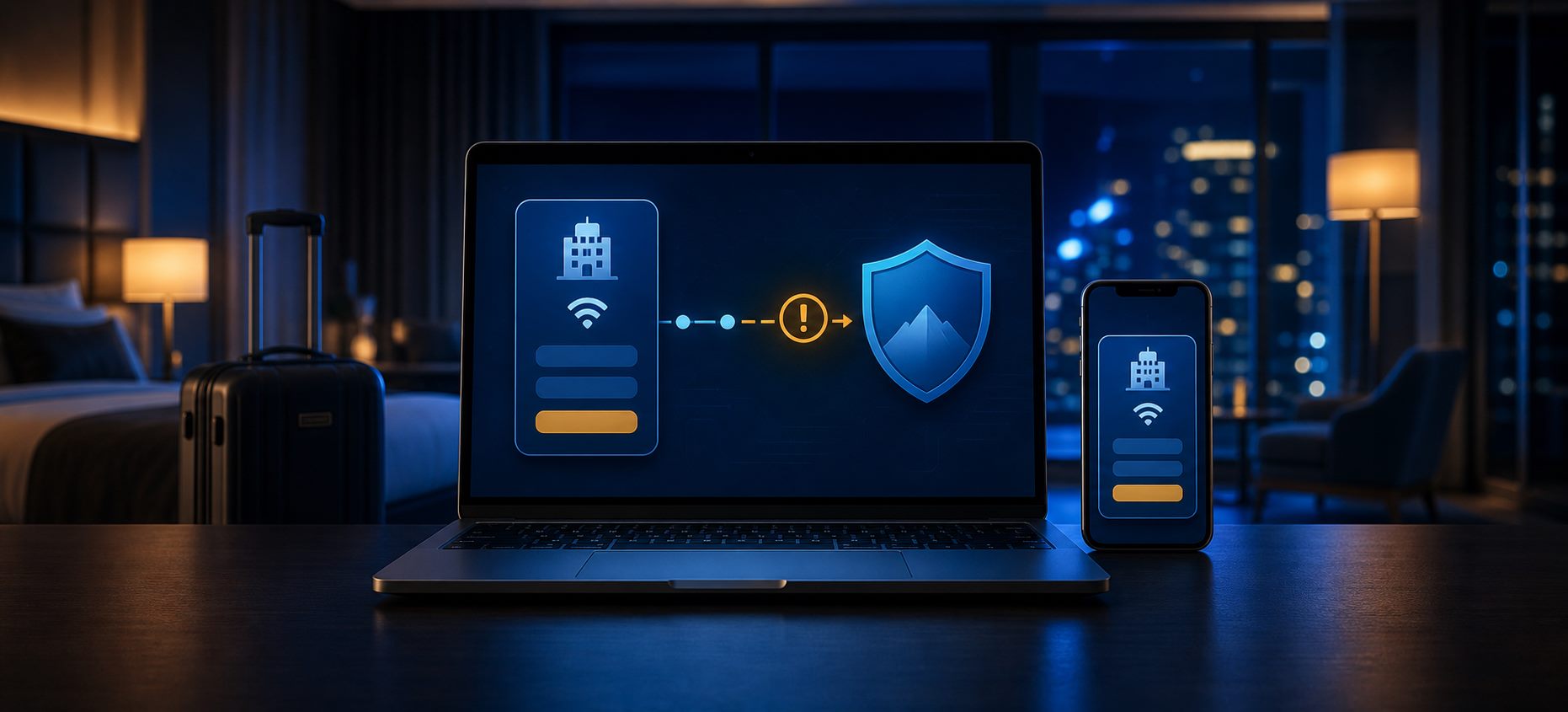
Many hotels use a captive portal. Your phone or laptop can associate with the Wi-Fi access point, but the network withholds normal internet access until you open a web page, accept terms, enter a room number or access code, or complete payment.
A VPN tries to create an encrypted tunnel to a remote server. If the hotel has not authorized the device, that tunnel cannot reach the server. At the same time, a kill switch, encrypted DNS, browser privacy feature, or always-on VPN can prevent the hotel from redirecting the browser to its login page. The result looks contradictory: Wi-Fi says connected, but the portal, internet, or VPN does not work.
| Symptom | Likely explanation |
|---|---|
| Wi-Fi connects but nothing loads | Captive portal is incomplete or hotel internet is down |
| VPN stays on Connecting | Hotel has not authorized the device or filters the selected protocol |
| Login page never appears | VPN, kill switch, secure DNS, cached session, or portal detection conflict |
| Internet works until the VPN starts | Protocol, DNS, server, firewall, or hotel filtering issue |
| VPN works on mobile data but not hotel Wi-Fi | Hotel network or captive portal is the likely difference |
| Only one device fails | Device registration, saved network state, DNS, or local software conflict |
| Every guest device fails | Hotel outage or access-point problem |
If the VPN reports Connected but websites still do not load, follow our VPN connected but no internet guide. If it works on Wi-Fi but not your cellular connection, use our mobile-data VPN troubleshooting guide.
Before joining, confirm the exact network name and login method with the front desk, room information, or official hotel app. Attackers can create a similarly named hotspot and imitate a sign-in page.
A padlock next to a Wi-Fi name only indicates how the wireless connection is configured; it does not prove that the network operator or portal is trustworthy.
Disconnect or pause the VPN before joining the hotel network. If the device still has no internet, review controls that deliberately block traffic outside the tunnel:
Turn off only what is required to display and complete the legitimate portal. Traffic may use the hotel connection directly during this period, so avoid opening background apps with sensitive data where practical. Re-enable protection immediately after the portal grants access.
If a work device enforces an always-on corporate VPN, do not remove it. Contact the employer's administrator or use an approved alternative connection such as managed mobile data.
After joining the network, wait for a notification such as Sign in to Wi-Fi network, Action needed, or Open login page. Tap it and complete the hotel's welcome screen. On iPhone or iPad, open Wi-Fi settings, select the network, and wait for the captive-network login assistant.
If no prompt appears, open a new private browser window and visit a simple non-sensitive web address. A plain HTTP request can allow the network to redirect to its portal when an already-open HTTPS page cannot. Do not type passwords or payment information into a page with a certificate warning.
If the browser shows a certificate mismatch or privacy warning, do not bypass it. Return to the operating system's Wi-Fi sign-in prompt or ask the hotel for the official portal address.
Open Wi-Fi settings, select the hotel network, choose Forget, and reconnect using the confirmed network name. This clears a stale association and can restart captive-portal detection.
Forgetting the network may also change how the device presents its private Wi-Fi address. Some hotels register access per device address, so you may need to complete the portal again. Do not disable private-address or MAC-randomization features unless hotel support confirms it is necessary and you understand the tracking tradeoff.
Custom DNS, encrypted DNS, Android Private DNS, browser DNS-over-HTTPS, and filtering profiles can prevent a captive portal from resolving or redirecting correctly. Temporarily return them to their previous automatic setting, reconnect to Wi-Fi, and try the portal again.
Restore your preferred secure DNS configuration after hotel access and the VPN connection are working. Change one setting at a time so you know which one mattered.
An incorrect clock can break secure connections and login sessions. Set the device's date, time, and time zone automatically, then reopen the portal. This is particularly relevant after long flights or manual time-zone changes.
Hotels can limit the number of registered devices, expire access at checkout time, or retain an old session. Give the front desk the room number and describe the device type without sharing passwords. Ask whether the access code is active, whether the device limit has been reached, and whether they can reset the guest-network registration.
After completing the portal, open two ordinary HTTPS websites with the VPN still paused. If neither loads, the problem is still the hotel connection rather than the VPN.
Check:
Do not repeatedly reinstall the VPN while the underlying hotel connection has no internet.
Once ordinary internet access works:
You can verify routing with our VPN connected but IP address not changing guide. Never post your full public IP or diagnostic logs in a public forum.
The first server may have an unavailable route from the hotel. Test two or three nearby locations. A geographically close server is a sensible starting point because it usually reduces routing distance, but hotel congestion and provider routing can matter more than geography.
If one server works and another consistently fails, keep using the working location and report the failing server to the VPN provider.
Hotel networks may allow ordinary web traffic while filtering or mishandling some VPN protocols. Start with the provider's Automatic setting, then test supported alternatives one at a time.
Possible choices include:
Do not assume TCP or port 443 will always work, and do not change router or firewall settings you do not control. A hotel is entitled to manage its network, and some properties prohibit personal VPNs.
If the VPN connects but only some sites load, temporarily test with default VPN DNS. Custom DNS can conflict with the hotel's resolver or the provider's routing.
Also review, one at a time:
Do not leave security software disabled as a permanent fix. Update both products, use documented exclusions, or contact their support teams.
Update the VPN from the official app store or provider website, install current operating-system updates, and restart the device. Rejoin the hotel Wi-Fi, complete the portal if requested, and test the VPN with default settings.
Avoid unofficial VPN APKs, configuration profiles, or browser extensions offered by a portal or pop-up. A normal hotel login should not require a modified commercial VPN application.
Join the hotel network under Settings > Network & internet > Internet or the equivalent manufacturer menu. Tap the sign-in notification if it appears. If the portal is blocked, pause the VPN and review Always-on VPN, Block connections without VPN, Private DNS, and other apps that use Android's VPN interface. Restore those protections after login.
Open Settings > Wi-Fi, select the verified network, and wait for the captive login screen. Apple documents that captive networks may ask for credentials, an email address, payment, or acceptance of terms. If the screen was cancelled, reselect the network or use its information page to join again. Review Auto-Join and Auto-Login only for that network.
Select the hotel Wi-Fi from Quick Settings, then open the Action needed notification or a fresh browser. Pause the VPN and Internet Kill Switch only if they prevent portal access. Check Windows proxy settings, custom DNS, and security software if the portal remains blank.
Join the network through System Settings > Wi-Fi and use the captive-network assistant. If it does not appear, pause the VPN and filtering extensions briefly, forget and rejoin the network, and check automatic date and time. Do not remove an employer-managed network extension.
Devices without a normal browser may not complete a hotel portal. Ask the hotel whether it supports that device type or offers an official registration method. A travel router can help only when permitted by the hotel and configured before the trip. Do not clone another guest's device identity or evade the network's access controls.
Use this order for NordVPN:
NordWhisper is not compatible with every NordVPN feature, including some specialty server types. Use the app's current documentation rather than combining incompatible options.
The US Federal Trade Commission explains that widespread HTTPS encryption has made public Wi-Fi generally safer than it was historically. Look for HTTPS, keep software updated, use strong unique passwords, and enable multi-factor authentication.
A VPN adds an encrypted tunnel between the device and VPN server, which can reduce what the local network sees about traffic inside that tunnel. It does not make a fake hotel portal trustworthy, protect information entered into a phishing site, remove malware, or make you anonymous after signing in to accounts.
Use cellular data or a personal hotspot for particularly sensitive work when practical and permitted. Mobile data can still have privacy and security considerations, but it avoids reliance on the hotel's local Wi-Fi and captive portal.
Contact the hotel when:
Contact the VPN provider when:
Send diagnostic logs only through an official support channel. Logs can contain device and connection details, so do not publish them.
The hotel may filter the selected VPN protocol, the server route may fail, or custom DNS and security filtering may conflict with the network. Try another server, Automatic mode, and a supported restrictive-network protocol.
The VPN or kill switch may block the captive portal redirect before the hotel authorizes your device. Pause protection briefly, complete the verified portal, and reconnect the VPN immediately afterward.
Use the operating system's Wi-Fi sign-in notification, reselect the network, or open a fresh browser window after pausing the VPN. Forgetting and rejoining the network or returning DNS to automatic can restart portal detection. Do not bypass a certificate warning.
Only long enough to complete the hotel's legitimate portal when necessary. Avoid sensitive activity while it is off, then reconnect and restore the kill switch.
A hotel can restrict protocols, ports, or VPN use on a network it operates. A failed connection does not prove deliberate blocking; captive portals, routing, DNS, congestion, and configuration problems can produce the same symptom.
There is no universal winner. Start with Automatic, then test the provider's maintained alternatives. TCP-based or restrictive-network protocols can sometimes work when another option fails, but results depend on the hotel and provider.
The phone carrier and hotel use different routing, DNS, firewalls, and access rules. Complete the hotel portal first, then change server and protocol. If ordinary hotel internet is broken, fix that before the VPN.
VPNs are legal in many places but restricted in some countries, and hotels can set network terms. Check local law and hotel policy. A VPN should not be used to evade payment, access controls, or unlawful restrictions.
Yes, where VPN use is permitted and the hotel connection supports it. Complete the captive portal before starting NordVPN. If normal servers fail, NordVPN documents NordWhisper as an option for restrictive hotel and public Wi-Fi environments.
It can encrypt traffic to the VPN server after connection, but it cannot prove that a network or portal is operated by the hotel. Verify the network name and never enter sensitive information into an unconfirmed portal.
When a VPN does not work on hotel Wi-Fi, finish the hotel's captive portal first. Pause the VPN and blocking controls only as long as necessary, verify that ordinary internet access works, then reconnect the VPN and restore protection. If the portal is complete but the VPN fails, change server and protocol, review DNS and filtering conflicts, update the app, and compare another network.
Do not bypass certificate warnings or hotel access rules. A careful sequence protects both connectivity and privacy: verify the network, authenticate, reconnect the VPN, test the tunnel, and use official support when the problem persists.